
Generate an Offline Order Form
1. Go to 'Manage' - 'Offline Order Form'
2. Click the 'Create Offline Order Form(s)' button.

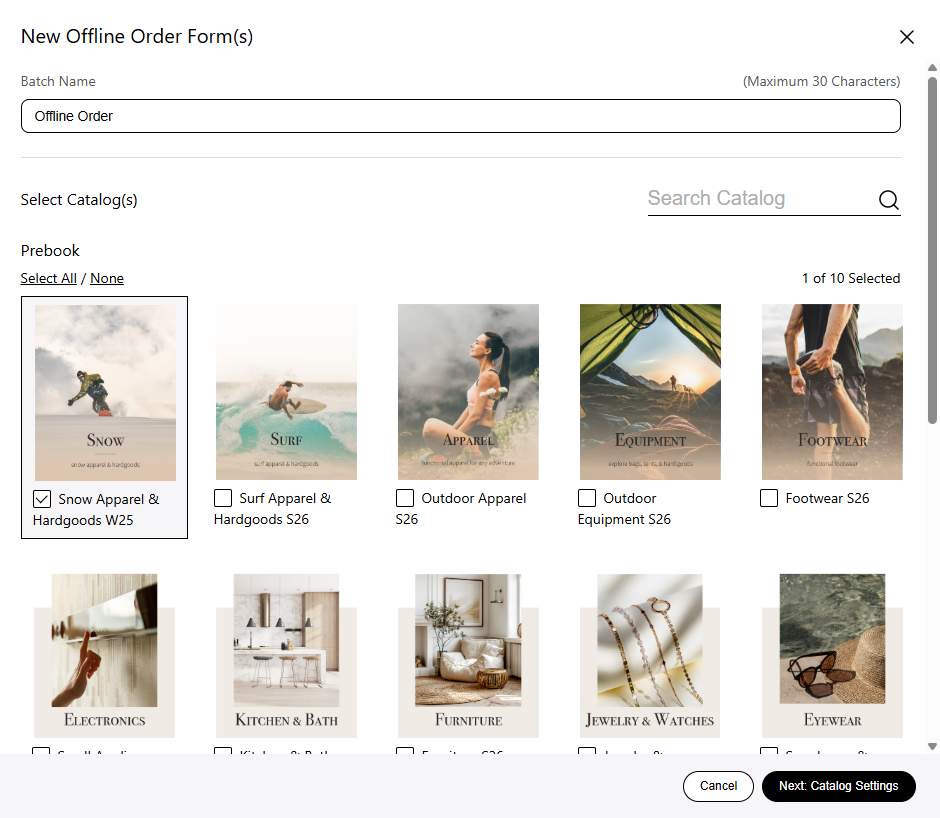
3. Give your offline order form an optional name, select the catalog(s) you'd like to use and go to 'Next: Catalog Settings'.
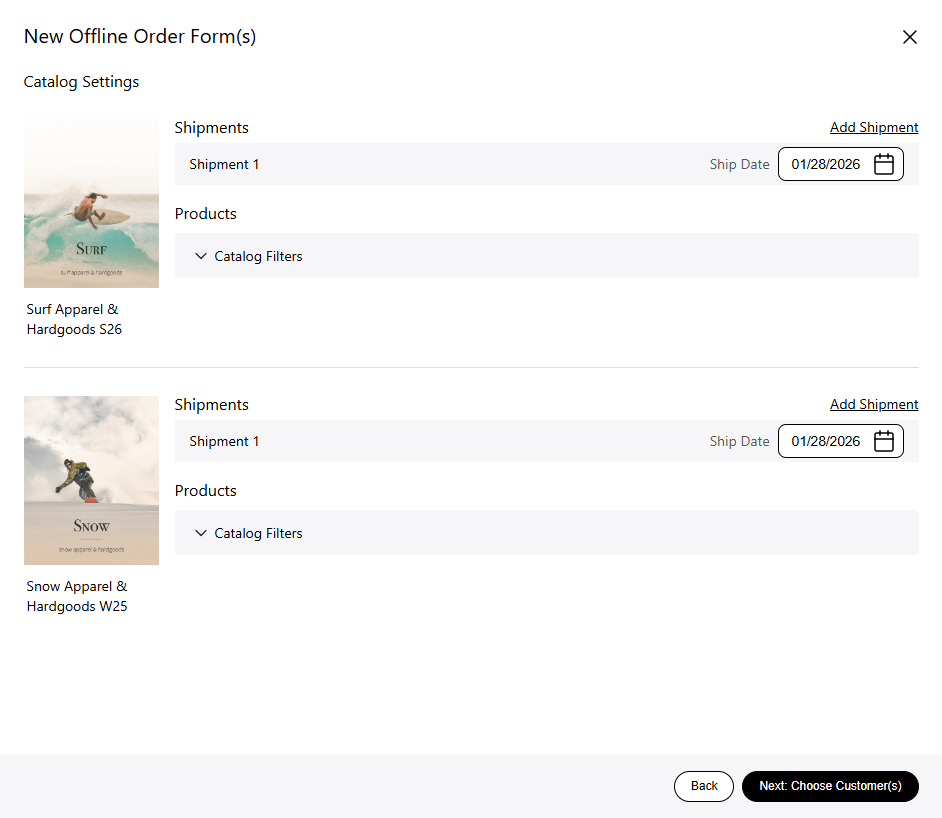
4. Set your shipment dates, and add additional shipments. You can also filter the products based on the selected filters.
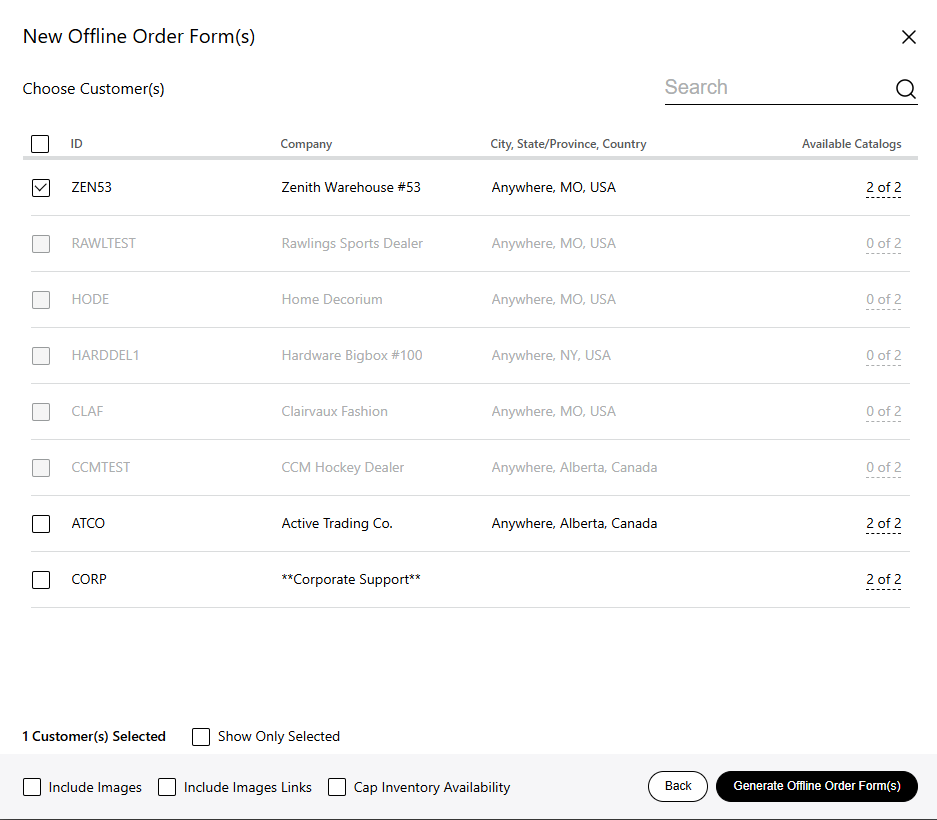
5. Go to 'Next: Choose Customer(s)' and select your customers. The customers who don't have the catalog permissions for the selected catalogs will be greyed out. This page will also let you choose if you want to include images, image links, or cap the available inventory.
6. You'll get a message saying the offline order form generation has started. After the form has been generated, download if from the offline order form page or your email.
Upload an Offline Order Form
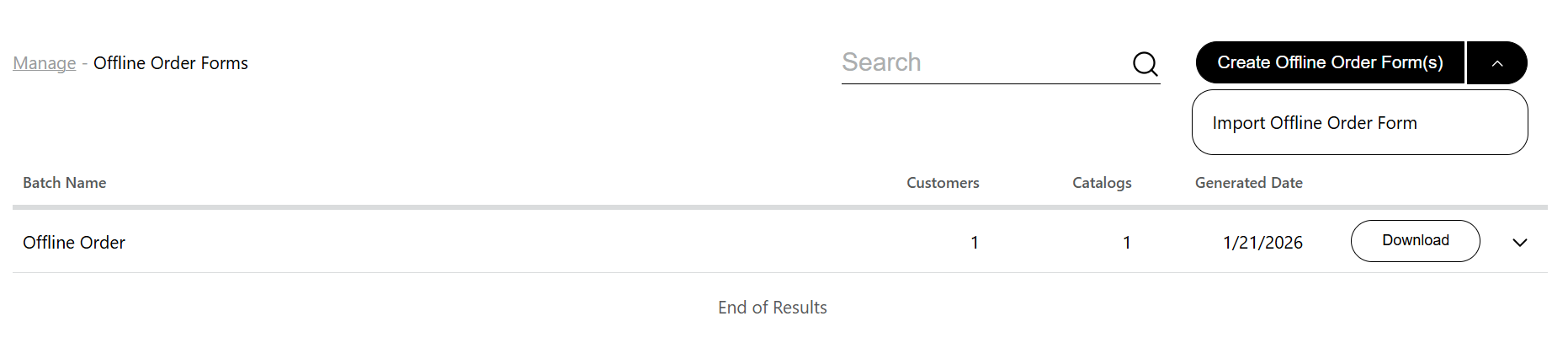
1. After filling out your form, navigate to 'Manage' - 'Offline Order Form' and select 'Import Offline Order Form' from the dropdown menu.
2. Pick the filled out form and select 'Open'. You'll be taken to the catalog, where you can make further edits to your order.